Enterprise B2B
Importing Floorplans in iBwave
Reduced building model import from 6–12 hours of manual tracing to under 3 minutes — and proved scale by importing the entire Burj Khalifa structure in 10 minutes.
Client
iBwave Solutions
Role
Senior UX Designer
Year
2022
Tools
Figma, Axure, Sketch
The Problem: Days Lost to Manual Tracing
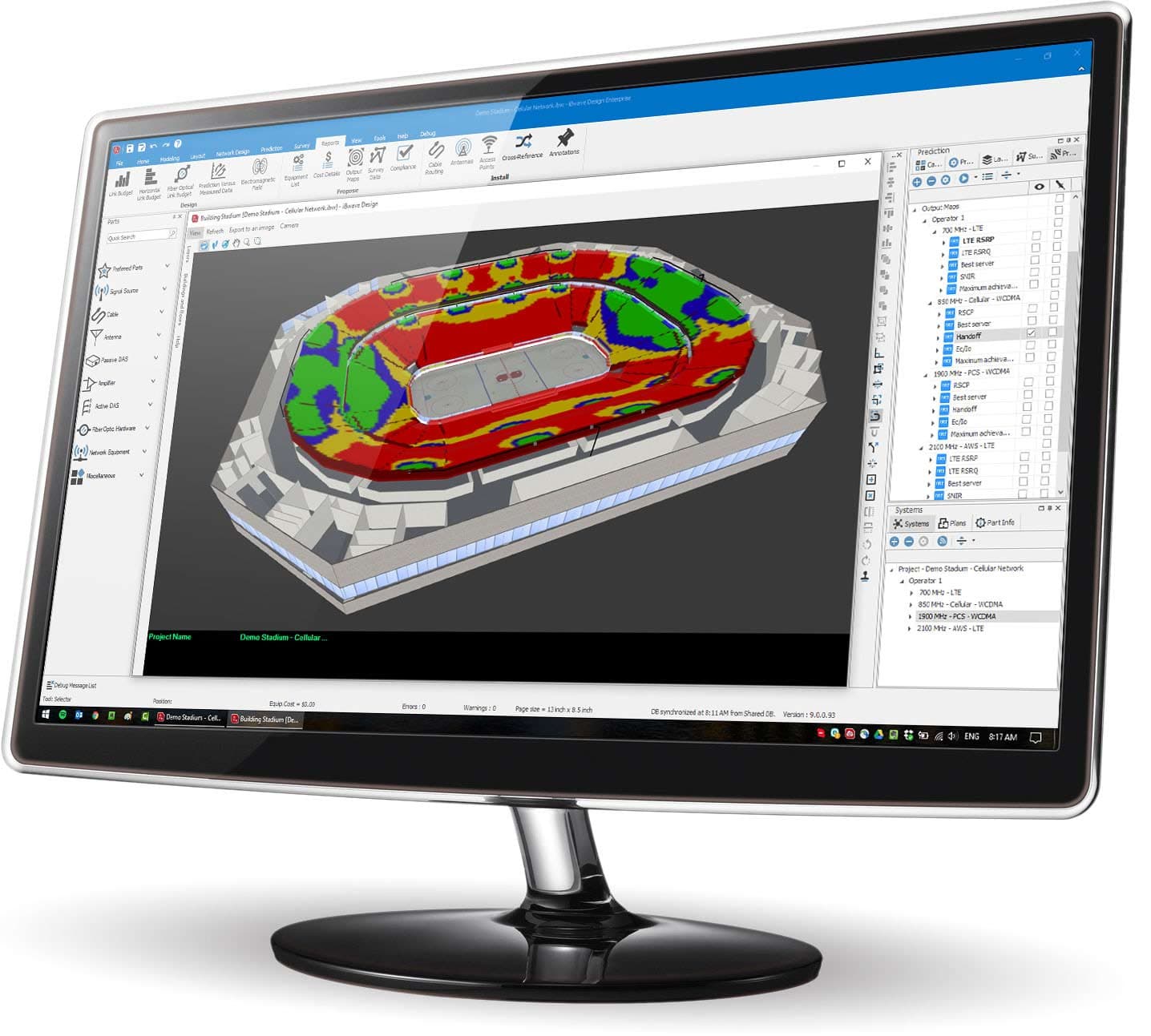
Every wireless network design began the same way: an engineer importing a floor plan image and manually tracing every structural element — walls, doors, windows, columns — one by one. iBwave's simulation engine needed to know where every barrier was and what material it was made of, and the only way to get that data was human labour. A medium-sized office building took 6–12 hours. A stadium or hospital: one to two weeks. This was the unavoidable first step before a single antenna could be placed.

Technical Strategy: Finding Semantic CAD
Customer files were 2D PDFs — structural outlines with no embedded semantic data. Automation was impossible from that starting point. Research led to Autodesk's Forge platform: APIs for reading modern 3D BIM formats like Revit, which carry rich semantic information. Every element is identified (wall, door, window) and every material is tagged. Full automation became technically feasible. The business case was harder. It took months of prototyping, presentations, and internal advocacy to secure the investment to build it.

Result: 3 Minutes, Any Building on Earth
The alpha release reduced building model import from hours to under three minutes for a typical office or hotel. The team needed a memorable proof of scale. We imported the complete structure of the Burj Khalifa — all walls, doors, windows, and floors — in under ten minutes. The feature shipped to iBwave's global user base of wireless network engineers.

The Import Wizard
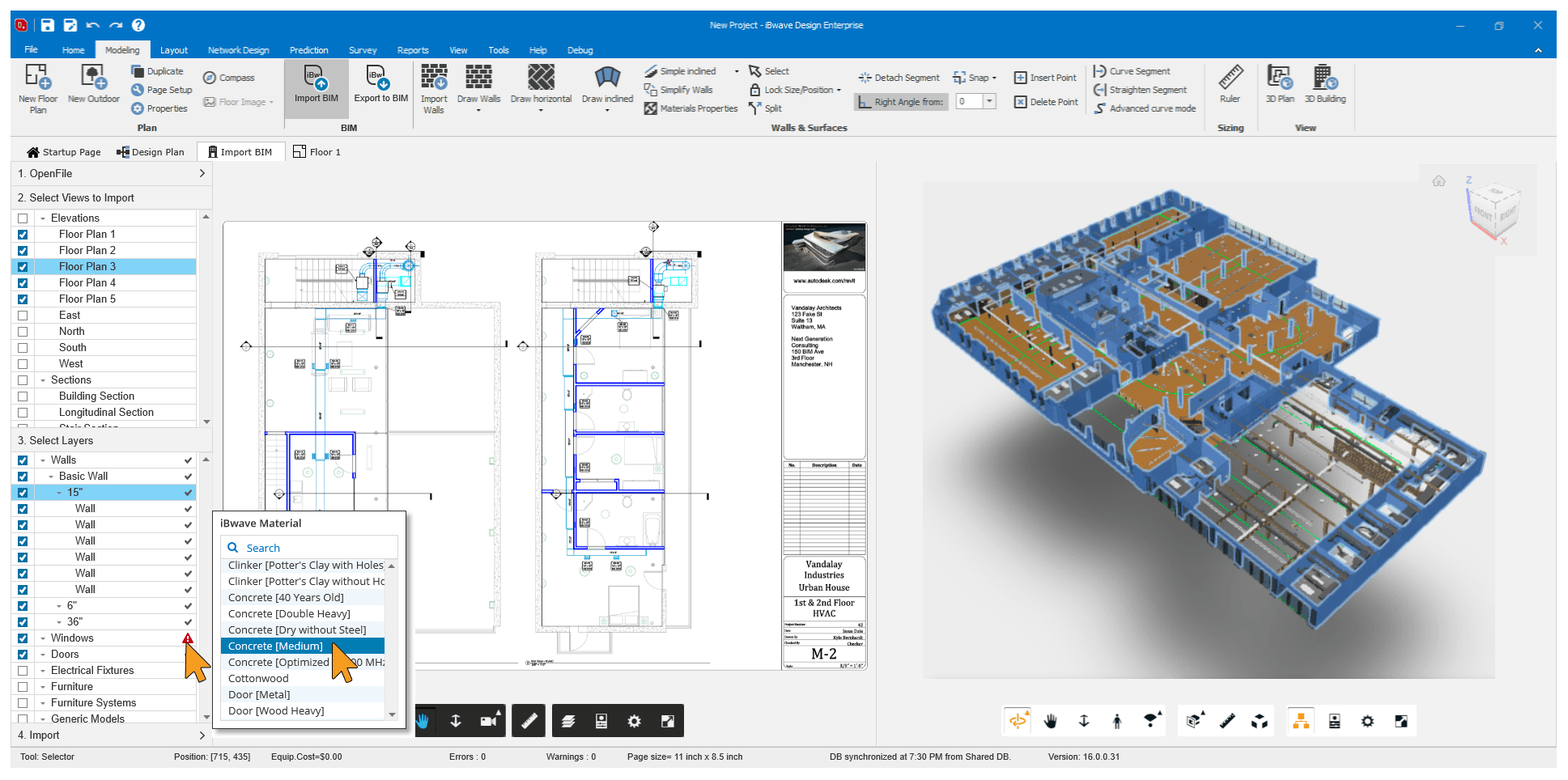
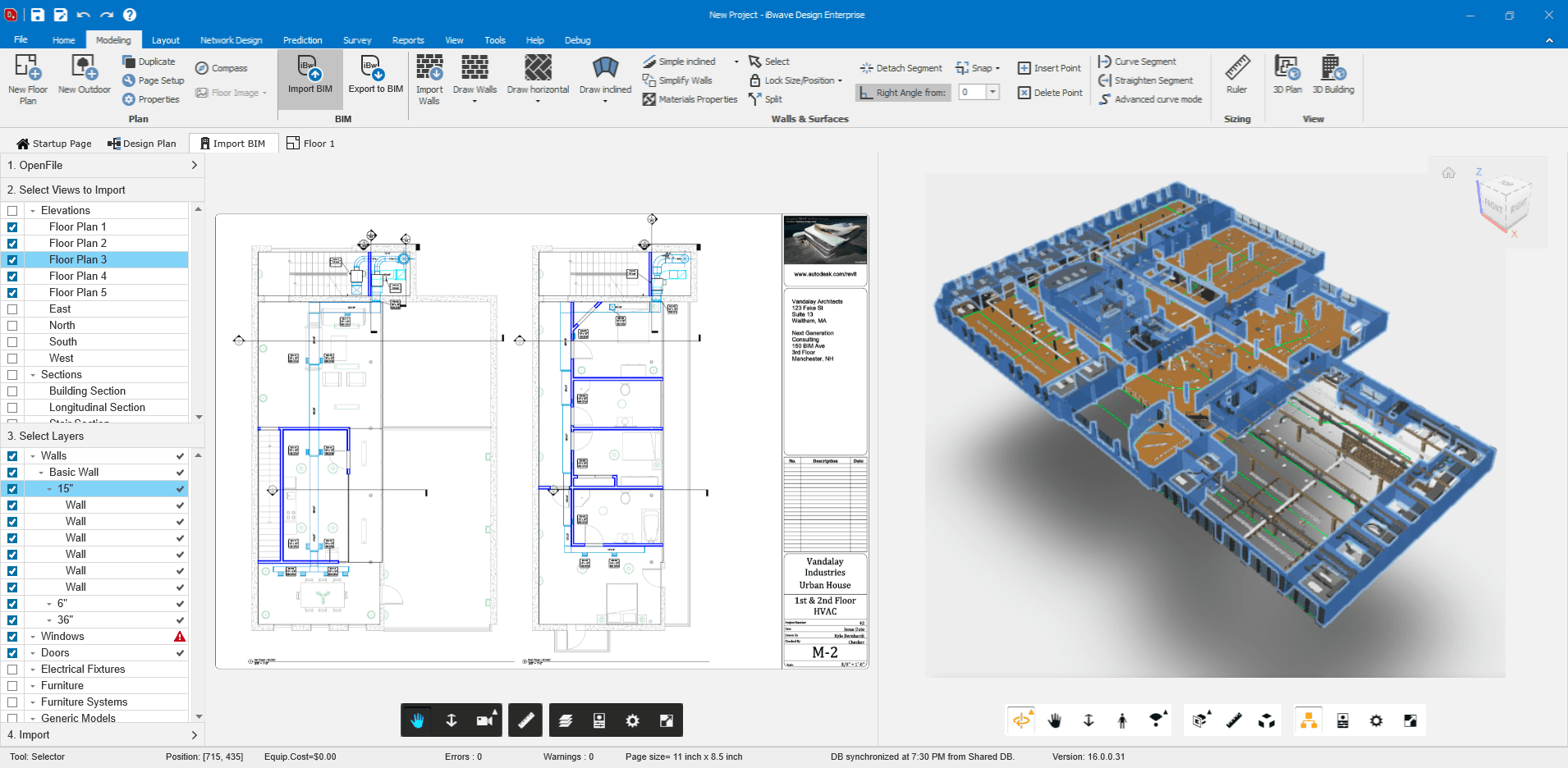
The import flow is a four-step wizard: select the BIM file; choose the building floors; select the structural layers (walls, doors, windows, stairs, floors); confirm the import into iBwave Design. The application automatically selects all relevant views and layers — the engineer only needs to intervene for exceptions. What took days now takes a few minutes of confirmation.
Three-Panel Workspace
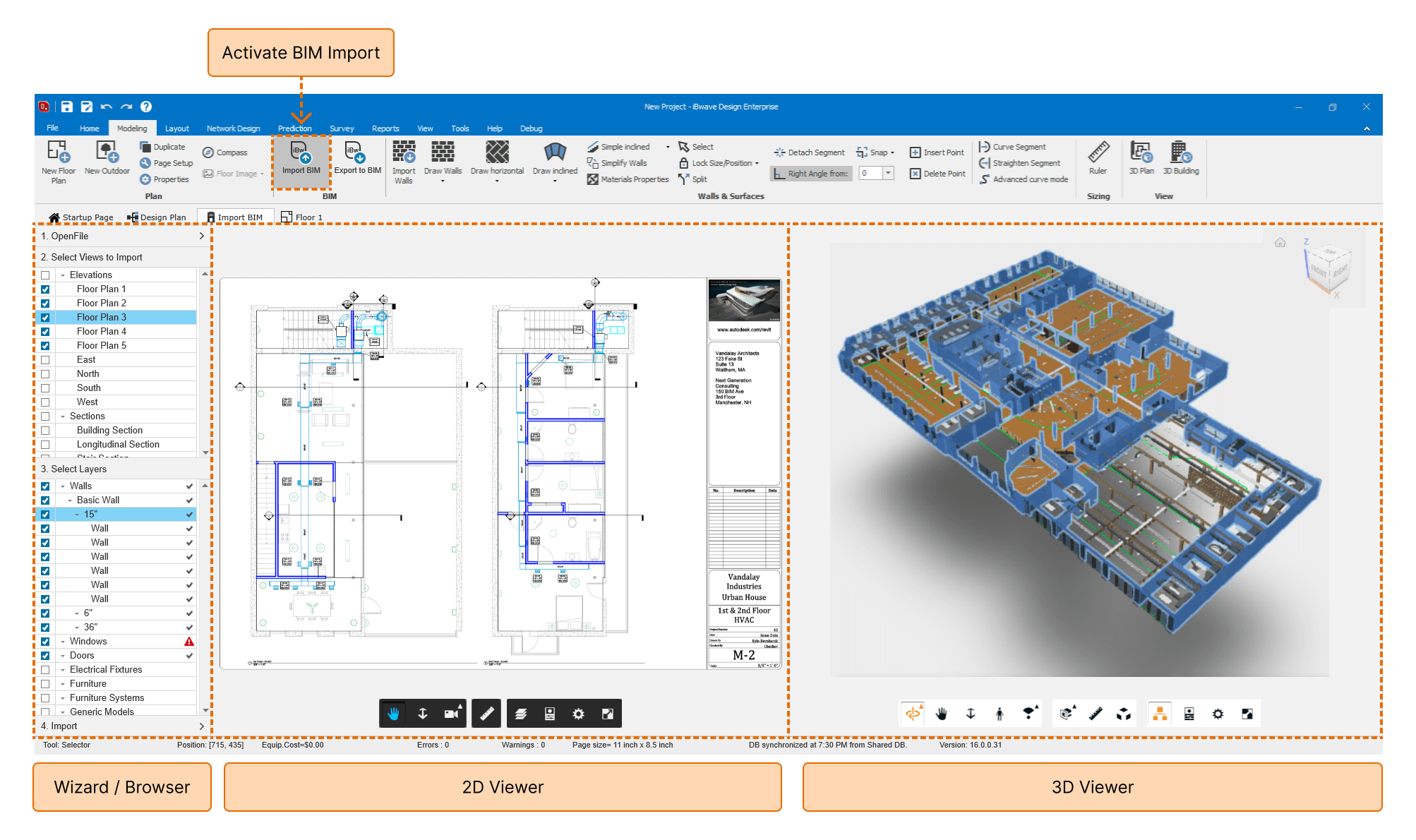
The import screen divides into three coordinated panels: the Wizard/Browser for step-by-step guidance, a 2D Viewer showing the floor plan, and a 3D Viewer showing the volumetric model. Engineers can visually confirm their selections in real space before committing. Material mapping happens automatically — BIM materials (concrete, glass, wood) are matched to iBwave simulation materials without manual input.
Graceful Error Handling
When automatic material mapping encounters an unknown or ambiguous BIM material, an error icon surfaces on the specific item. One click opens a targeted dialog where the engineer selects the correct iBwave material for that type. The system handles the routine cases; the human handles the edge cases. The happy path stays frictionless; the engineer is never abandoned when something unexpected occurs.